
Add CarmelBuzz.com to Your Phone's Home Screen (So It Feels Like an App)
Published July 23, 2026
Here's a two-minute trick that makes checking CarmelBuzz a whole lot easier: add it to your phone's home screen. Once it's there, it opens full-screen, sits right next to your other apps, and skips the browser bar entirely — so keeping up with Midtown Carmel news, events, and watch parties feels a lot more like using an app than typing a URL every time.
Here's how to set it up, whether you're on an iPhone or an Android phone.
On iPhone (Chrome)
Step 1: Open Chrome and go to carmelbuzz.com.
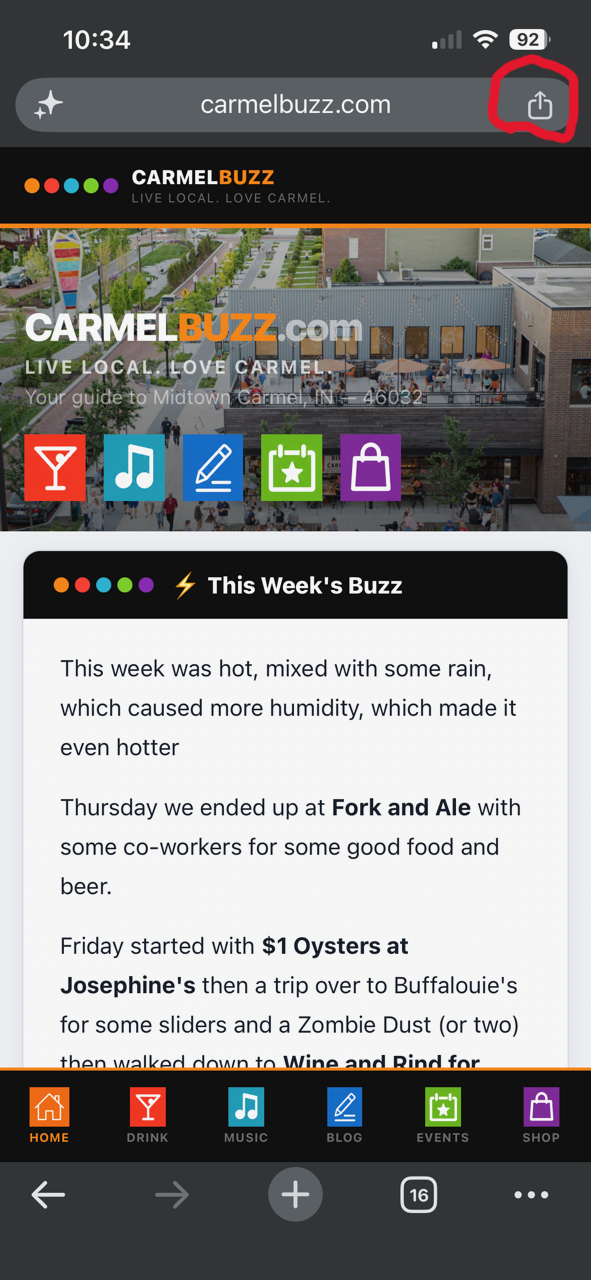
Step 2: Tap the Share icon — on iPhone, Chrome uses Apple's share sheet, so it's the same square-with-an-arrow icon, found next to the address bar.
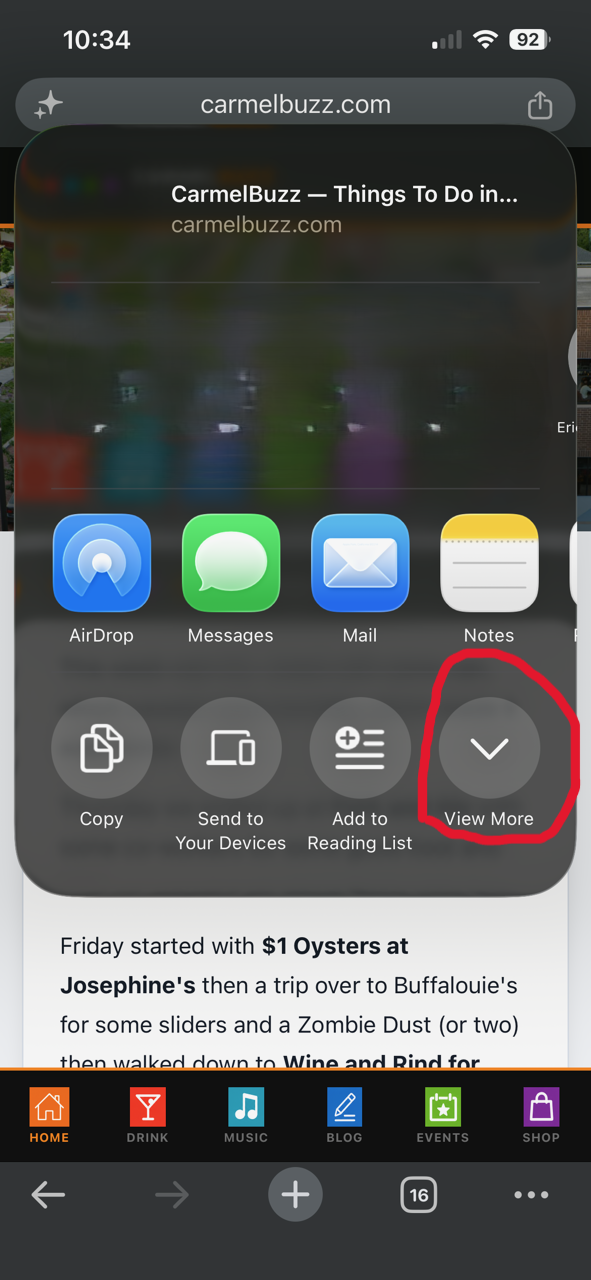
Step 3: Tap View More to expand the share sheet.
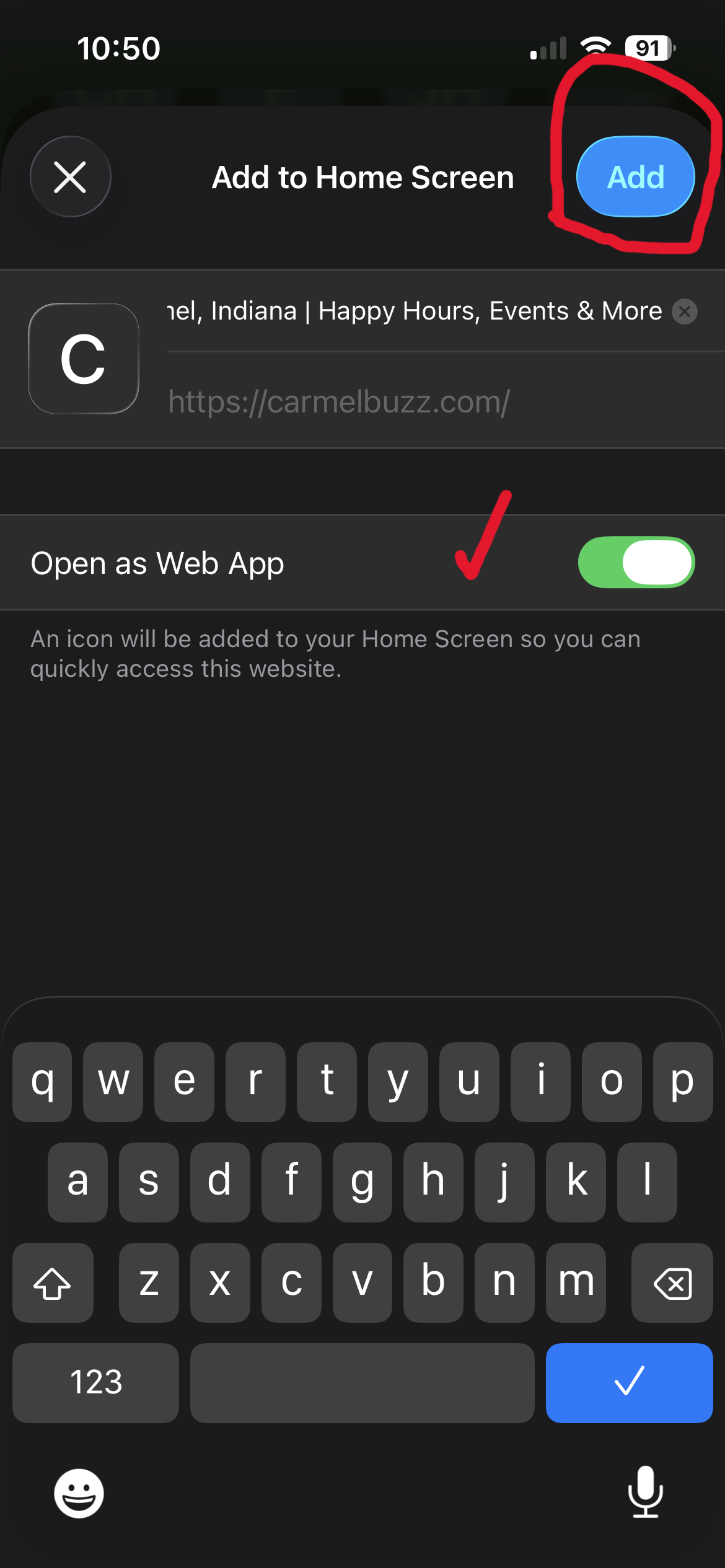
Step 4: Scroll down and tap Add to Home Screen.
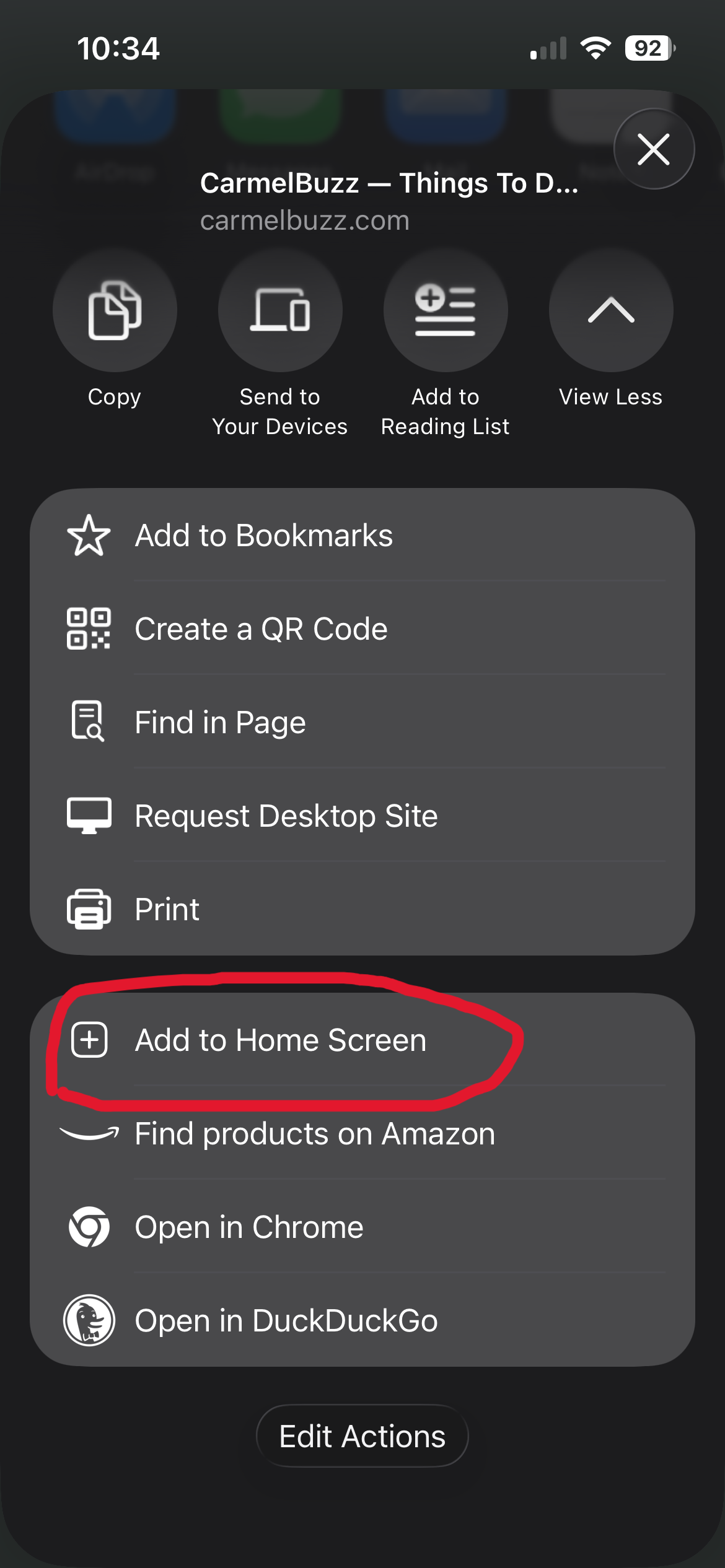
Step 5: Confirm the name and tap Add in the top right corner. The CarmelBuzz icon lands on your home screen, ready to tap anytime.
On iPhone (Safari)
Step 1: Open Safari and go to carmelbuzz.com.
Step 2: Tap the Share icon (the square with the arrow pointing up) at the bottom of the screen.
Step 3: Scroll down the share menu and tap Add to Home Screen.
Step 4: Confirm the name (or edit it if you'd like) and tap Add in the top right corner. The CarmelBuzz icon will appear on your home screen, ready to tap anytime.
I Don't Speak Android, But Here's What AI Says to Do
On Android (Chrome)
Step 1: Open Chrome and go to carmelbuzz.com.
Step 2: Tap the three-dot menu in the top right corner of the browser.
Step 3: Select Add to Home screen, then confirm by tapping Add (you may see this option, or a similar one, labeled Install app depending on your Chrome version).
Step 4: The CarmelBuzz icon will drop onto your home screen. Tap it anytime for a clean, full-screen view — no address bar, no tabs, just the news.
Why Bother?
Once CarmelBuzz is on your home screen, it launches in its own window without the usual browser clutter, remembers exactly where you left off, and puts Midtown Carmel news one tap away — whether you're checking watch party schedules at Midtown Plaza, catching up on the latest happy hour roundup, or seeing what's new in the Arts & Design District.
Give it a try, and keep CarmelBuzz right on your home screen where the rest of Midtown Carmel already lives.
Steps based on current Chrome (iOS), Safari (iOS), and Chrome (Android) menus as of July 2026. Menu wording may vary slightly by phone model or app version.
 Shop
Shop Blog
Blog Live Music
 Trivia
 Local Sports Teams
 About
About